Admin access is a new enhancement in WorkRecords that allows designated Labor Supplier users to manage certain settings for their own company.
Admin access is designed to give your company more independence and flexibility in managing your account without needing to contact WorkRecords Support for routine changes. Used thoughtfully, these tools help keep your account organized, secure, and aligned with how your team operates—while also minimizing disruptions to your workflow by allowing you to make updates immediately, rather than needing external support.
If you have been granted Admin access, you can:
- Create user accounts for your company
- Inactivate existing user accounts
- Manage user account permissions, including granting or removing Admin access
- Update select company information
- Add and maintain the Job Titles used for Templates and Orders
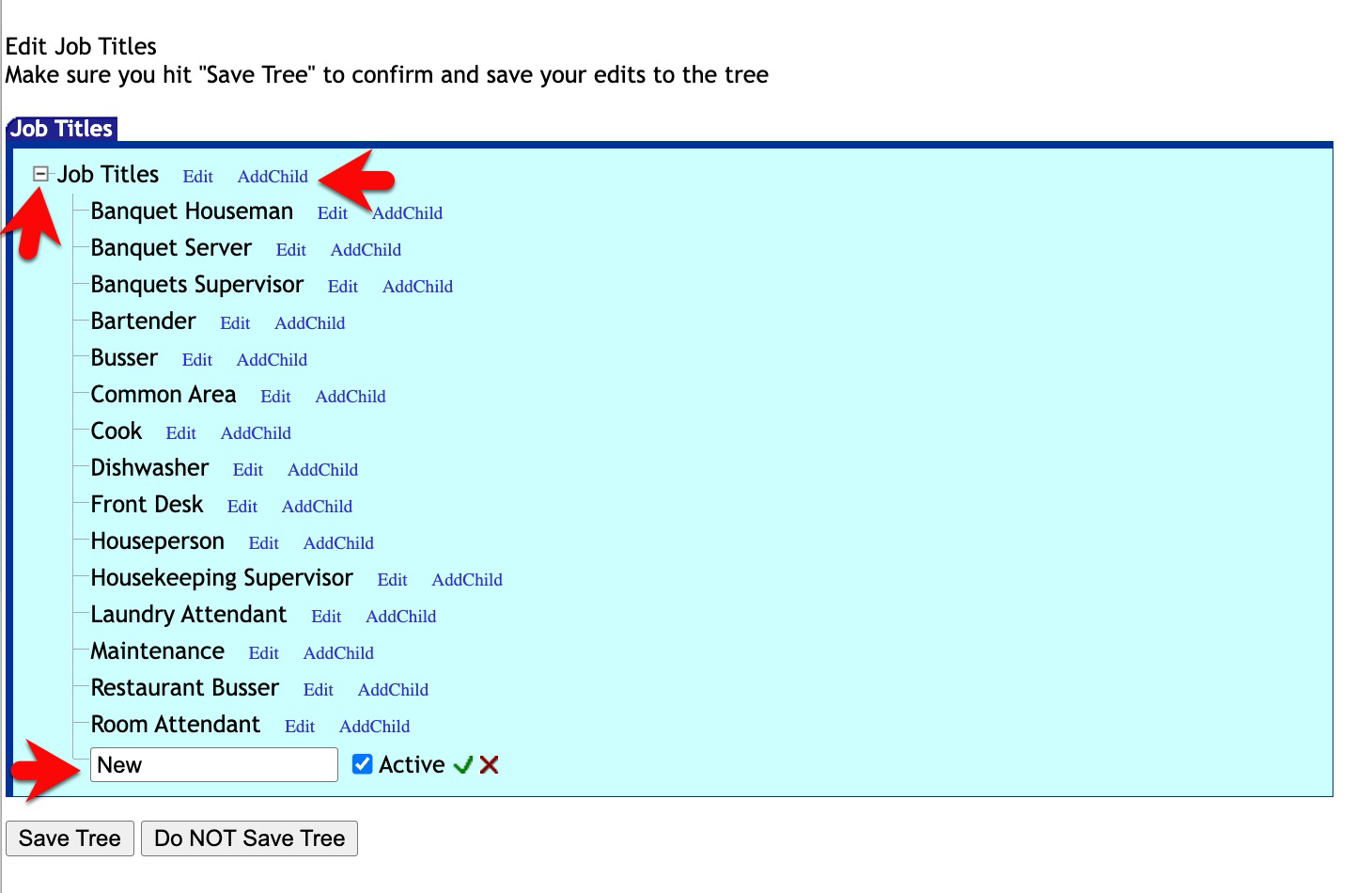
When you log into WorkRecords with Admin access, you will see an Administration tab on the blue menu bar. Clicking Administration provides three options:
Company Setup
Manage Existing Users
Edit Job Titles
Each of these areas is outlined below.
Company Setup
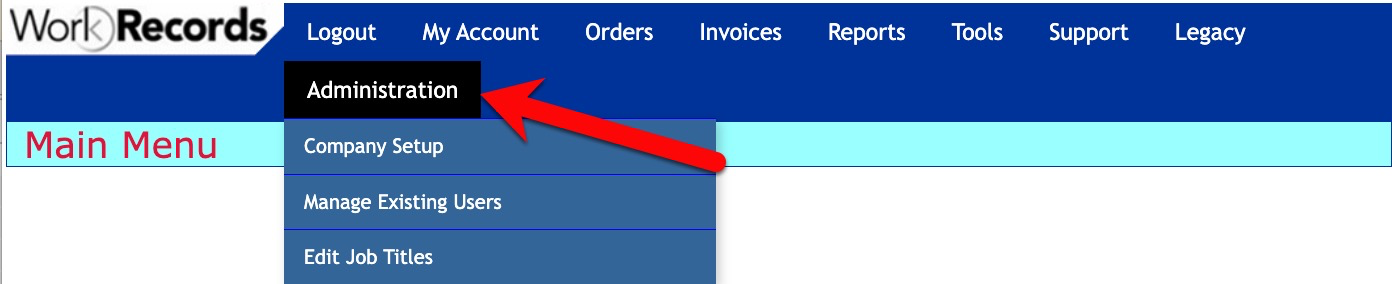
The Company Setup section allows you to maintain your company’s default business information. From here, you can update:
Your company’s main office address
Your company’s main phone number
Default invoice terms
Default remit address (the address that prints on invoices you present through WorkRecords)
Default Terms and Default Remit Address are important. These are defaults only. If your company has special invoice terms or a special remit address for a specific customer, those customer-specific settings will override anything entered here. With Admin access, you can update the defaults, but you cannot modify customer-specific invoice terms or remit addresses. To change anything that is specific to an individual customer, submit a Support ticket or email support@workrecords.com.
To make any updates in this section, type over the existing text and input your new information. Then, click the Save Your Updates button at the bottom
Manage Existing Users
The Manage Existing Users area shows every user account that has been created for your company. For each user, you can see:
Their account status
The date they last logged in
Their access level (shown in the Security column)
Standard Access Levels
R – Regular
Most users will display an R, which indicates Regular access.- A – Admin
An A indicates that the user has Admin access. Because of current and future enhancements to the Administration functionality, we recommend granting this access only to a select group of individuals who can thoughtfully and responsibly manage permissions and make high-impact updates to customer account information.
Premium Access Levels
WorkRecords includes optional premium features such as News Feeds and Back Office access. You will see these access levels listed even if your company has not elected to use those features.
These levels only provide functionality when your company subscribes to the corresponding premium services. If your company does not use premium features, avoid assigning these levels so users continue to see the correct standard views.
- B – Back Office
Used when your organization has separate, specialized views for a back-office team. Assign this only if your company has subscribed to this premium feature and it has been configured for your company. - N – News Feed
Used for a special host account that manages and publishes News Feeds. This access is not intended for real users and should never be assigned to a person—The WorkRecords implementation team creates and manages this account as part of your News Feed setup.
If you are interested in learning more about premium features like News Feeds or Back Office, please submit a Support ticket or email support@workrecords.com.
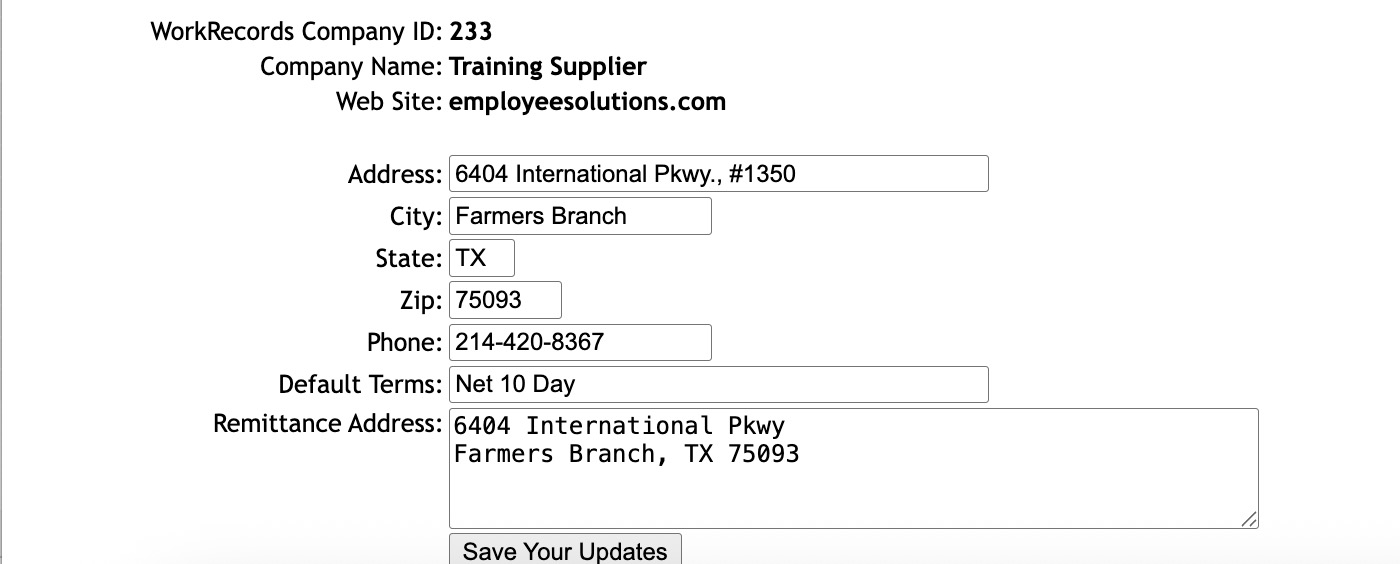
At the top of this page, you will also see a list of all email domains that have been used for user accounts at your company.

Inactivating a User
To inactivate someone’s account:
Use CTRL + F and search for the person's email.
Click Edit next to the user’s name.
Uncheck the box next to Active.
Click Update.
The user’s account will be immediately inactivated.

Granting or Removing Admin Access
To give a user Admin access:
Use CTRL + F and search for the person's email.
Click Edit next to their name.
Check the box next to Admin to add Admin access or uncheck the box to remove Admin access.
Click Update.

Resetting a Password
Any user can have their password resent from the main login page at www.workrecords.com using the Forgot Password link.
If you need to force a password change for a user:
Click Reset Password next to their account.
A brand-new password will be generated and emailed directly to that user.

Adding a New User
To create a new user account:
Click Add New User.
Enter the person’s:
First name
Last name
Email address
Phone number
Click Add User.
New users are created with Regular access by default, and login credentials are emailed to them automatically.
For security and consistency, it is recommended that you use your company’s email domain rather than personal or generic addresses (such as Gmail, Hotmail, etc.).
Please also be cautious about creating user accounts that are not tied to your company’s email domain. While the system will technically allow you to create these accounts, WorkRecords Support will not assist with creating or reactivating them once they have been inactivated. Using your company’s domain helps ensure proper access control.
Edit Job Titles
Job Titles are what your company uses when creating Templates and Orders. They represent the type of work your company is sending workers out to perform.
To manage Job Titles:
Click Edit Job Titles under the Administration tab.
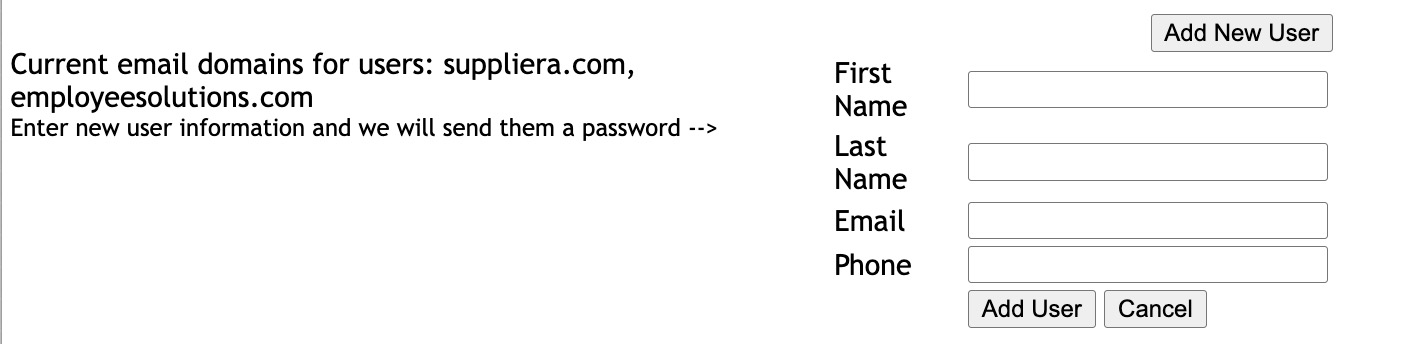
Click the + next to Job Titles to expand the list.
Click Add Child next to Job Titles.
A new item will appear at the bottom of the list.
Type over the word New with your desired Job Title.
Click the green checkmark to confirm.
Drag the Job Title into alphabetical order to keep the list easy to use.
Click Save Tree to apply your changes.
If your company uses subfolders to group Job Titles (or you would like to use them) and you would like help reviewing or cleaning up your structure, you can schedule time with a WorkRecords Customer Success Manager. Click here to schedule a session for assistance with your company's Job Title structure—we are happy to help you streamline and organize your setup.