You can reopen a worker’s Order if all information on the Order is still correct and the worker needs to continue working on that same Order. We recommend only reopening an Order if the worker has worked on that Order within the last 60 days. If it has been longer than 60 days, creating a brand new Order for the worker is typically the better option.
You can reopen a worker’s Order through the Info link by using the Complete Order option. A great View to use for this process is the one called Search Orders and Templates.
- Navigate to Reports > My Views and open the View called Search Orders and Templates.
- Search for the worker’s WR Order # that you want to reopen. Please pay close attention to the drop-down box at the top of the View. It defaults to Active. If you are searching for a closed Order that needs to be reopened, change the selection to All or Completed instead.
- Click the blue Info hyperlink next to the WR Order #.
- Click the Complete Order link.
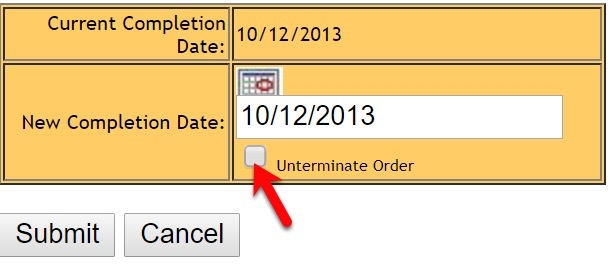
- Check the checkbox labeled Unterminate Order and click Submit.
- You do not need to enter a new termination date. Using the Unterminate Order checkbox will automatically remove the previously entered termination date and reopen the Order.